Loading...
Loading...
Loading...
Loading...
Loading...
Loading...
2025-03-18
Android, iOS
Support of v5 WAAP
Compatibility with v2 WAAP
Improved tagging of Mobile requests
Support mobile tags for requests: mobile-app:*
mobile-app:no-mobile-application-group
mobile-app:signature-mismatch
mobile-app:timeout-exceeded
2024-08-21
Android
Add support for Android 15
Support 16 KB page sizes for Android SDK
2024-08-15
iOS
Fix WebView requests loading
2024-06-26
iOS
Fix Cocoapods integration
2024-06-06
iOS
Improved Podfile, SPM
2024-05-28
iOS
Signed executables for device and simulator
Improve bot detection on iOS
Android
Improve bot detection on Android
2024-03-25
iOS
Improve bot detection on iOS
2024-03-25
Android and iOS
Fix false positive bot detection
2024-03-22
Android and iOS
Simulator detection improvements
2021-08-22
Android and iOS
Obfuscated SDK binaries.
Accumulate and publish the event counters in C++.
Changed encryption salt (breaking compatibility with older backend version).
Send timestamp with ms accuracy.
iOS
Support autoSign.
2021-06-24
Android and iOS
Full rewrite of the SDK, requires backend version 2.16 or higher.
Link11 WAAP is not a stand-alone platform; it is integrated with a dedicated support team which is available to you 24/7/365. Please contact us at any time if you need assistance.
Our support is not limited to daily operational use of our platform. We're happy to help with initial setup and configuration, ongoing administration, introductory or in-depth training, discussion of feature requests, and more.
For support regarding the L11WAAP Mobile SDK, send a message to .
For general support with L11WAAP, send a message to [email protected].
mobile-app:token-mismatch
mobile-app:emulator
Add timesliced event reporting.
Our US toll-free number is: +1 (888) 6155996.
Link11 support will manage all tickets, and will be responsible for escalation as needed.
Please feel free to contact us. We're eager to help you achieve success, and to harness the full power of the platform!
The SDK supports programmatic integration with Kotlin or Java.
This SDK comes with examples: a full Android Studio project is enclosed, written in Java. You can play with this example to understand how SDK integration works.
Unpack the ReblazeSDK.zip to your computer, and add the dependency:
In the project build.gradle:
… and then in the module build.gradle, add the SDK:
After you click Sync Project with Gradle files, the library will be available, and Android Studio will insert the import statement in your source files that need it:
For historical reasons, the example includes dependency on ReLinker.
If your app also uses ReLinker, then the Link11 WAAP SDK can make use of it. The proguard.txt that is shipped in the SDK bundle, includes this rule to keep ReLinker classes and methods, to make sure to add keep rules so that ReLinker code is not stripped from the final app or dex file.
For an Android app, you can get the SHA-256 fingerprint from the keystore or extract it from a signed APK:
See detailed instructions .
When uploading the fingerprint to the L11WAAP console, make sure that it contains hexadecimal characters only, in lowercase, without spaces.
During testing, you may allow running the app on an Emulator. This will use a special signature: "abadbabe". Make sure that this is disabled on Production. Note that you can also use both on Emulator and on a physical device. The DEBUG signature "abadbabe" can be used for running the application on simulator (emulator) and devices in the debug mode. To use it, add "abadbabe" to the signatures section and make it active:
There is a protocol between the SDK and the backend that negotiates the signature remotely and notifies the system of a new one, if such was generated. The communication between the components takes place under the /74d8-ffc3-0f63-4b3c-c5c9-5699-6d5b-3a1f endpoint, and when a new signature is introduced, it will be provided as a value for the header named "sig7" (see screenshot below), the signature can have 7 or more characters. This new signature shall then be added to the app signatures list under the Mobile SDK settings in the L11WAAP console. To find it easily in the View Log, use this filter:
url~74d8-ffc3-0f63-4b3c-c5c9-5699-6d5b-3a1f
We recommend using no-code configuration. You need to supply a resource string ReblazeURL in your application resources, e.g. by dropping the following file into the res/values directory of your Android Studio project:
All other parameters will be received though .
If you prefer to configure the SDK programmatically, it's best to override the Application's
You can use or to load a page that will be securely signed by Mobile SDK. But this will not extend signatures for the links embedded in the page, or AJAX requests and other resources. To include these, your WebView should use the WebViewClient class from the com.reblaze.sdk package.
The snippet above shows that com.reblaze.sdk.WebViewClient extends the Android WebViewClient and can be further extended if necessary. All HTTPS requests for such webView that go to your backendUrl will be automatically signed by the SDK.

allprojects {
    repositories {
        maven { url "file:${sdkRootDir}/libs/android/" }
    }
}implementation 'com.reblaze.sdk:mobile-sdk:2.3.0'import static com.reblaze.sdk.Reblaze.reblaze;implementation 'com.getkeepsafe.relinker:relinker:1.4.3'-keep class com.getkeepsafe.relinker.** { *; }apksigner verify --print-certs -v <APK_FILE><resources>
<string name="ReblazeURL" translatable="false">
https://rbzdns.example.com
</string>
</resources>override fun onCreate() {
super.onCreate()
reblaze.interval = 200
reblaze.reportCounters = ReportCounters.NONE
reblaze.backendUrl = "<YOUR-BACKEND-SERVICE-URL>"
}@Override
public void onCreate() {
super.onCreate();
reblaze.setInterval(400);
reblaze.setReportCounters(ReportCounters.NONE);
reblaze.setBackendUrl("<YOUR-BACKEND-SERVICE-URL>");
} import com.reblaze.sdk.WebViewClient
...
webView.webViewClient = WebViewClient()import com.reblaze.sdk.WebViewClient;
...
webView.webViewClient = new WebViewClient();This SDK comes with examples: two full Xcode projects are enclosed, one was written in Swift, another in Objective-C. You can play with these examples to understand how SDK integration works.
In the recent versions of Xcode, Enable Bitcode option is ON by default. This is not required for iOS apps. The bitcode option is not fully supported in Link11 WAAP's Mobile SDK. To use the Mobile SDK in your application, you must disable bitcode when you export the application for App Store distribution.
Run the pod install to receive the workspace that has the L11WAAP Mobile SDK integrated. Your Podfile should include:
Drag libs/iOS/ReblazeSDK.xcframework , libs/iOS/QEC.framework to your project in the Project Navigator.
Select your project and then your app target. Open the General panel.
In Frameworks, Libraries and Embedded Content add ReblazeSDK.xcframework and QEC.framework and mark as Embed and Sign.
Your backendUrl points to your application server, protected by the L11WAAP web proxy. You must configure this proxy to recognize the signature of your app. To find the signature of your app, you can open the Apple Development Certificate in the Keychain app, and copy the SHA-256 fingerprint. Alternatively, you can extract this fingerprint from the ipa bundle. Upload it to the L11WAAP console, making sure that it contains hexadecimal characters only, in lowercase, without spaces.
During testing, you may allow running the app on Simulator. The simulator generates a special DEBUG signature: "abadbabe". Note that you can also use Offline Testing both on Simulator and on a physical device. The DEBUG signature "abadbabe" can be used for running the application on Simulator (emulator) and devices in the debug mode. To use it add "abadbabe" to the signatures section and make it active:
There is a protocol between the SDK and the backend that negotiates the signature remotely and notifies the system of a new one, if such was generated. The communication between the components takes place under the /74d8-ffc3-0f63-4b3c-c5c9-5699-6d5b-3a1f endpoint, and when a new signature is introduced, it will be provided as a value for the header named "sig7" (see screenshot below), the signature can have 7 or more characters. This new signature shall then be added to the app signatures list under the Mobile SDK settings in the L11WAAP console. To find it easily in the Events Log, use this filter:
url~74d8-ffc3-0f63-4b3c-c5c9-5699-6d5b-3a1f
We recommend to configure the SDK by adding the ReblazeSDK string to iOS app Info.plist. This guarantees that the SDK will become activated as early as possible, sets autoSign and takes advantage of remote configuration.
If you want to configure the SDK programmatically, the best choice would be to configure the SDK in application:didFinishLaunchingWithOptions: method.
To access the SDK in your code, you must import ReblazeSDK as follows:
Note that autoSign may be turned ON and OFF at any time, and this property is subject to remote configuration override.
You can pass the rbzsdk header with a request that returns an HTML that you load into a WebView. But this approach does not support the links and resources (including AJAX) that are parts of that HTML. To handle these use cases, the Mobile SDK for iOS introduces auto-signing.
The SDK automatically signs all relevant requests as long as the application needs this. This applies not only to requests that originate in the WebView, but to all requests (based on NSURLRequest networking API, or any of the wrappers, like Alamofire, Moya, FSNetworking, or SwiftHTTP) that point to the designated backend. There is no collision if some request is signed programmatically.
While debugging the application, all auto-signed requests will be reported to your listener (see Monitoring the SDK.
Auto-signing could be abused by malicious actors if they can achieve hostile takeover of your app. That's why we strongly recommend that all our customers apply obfuscation and runtime protection techniques for their apps.
To reduce the attack surface, you may choose to turn auto-signing on only while a relevant WebView is active.
import ReblazeSDK@import ReblazeSDK;use_frameworks!
pod 'Reblaze', :path => '${ReblazeSDK_root}/libs/iOS'Add the following lines to your target in Podfile:
Install the new pods:
Open your application's .xcworkspace file
Follow the official instructions to manually link libraries: https://reactnative.dev/docs/linking-libraries-ios#manual-linking
Add the following lines to android/build.gradle:
Add the following lines to android/settings.gradle:
Add the following lines inside the dependencies block of android/app/build.gradle:
Add the following lines to your application's MainApplication.java:
In the imports at the top of the file:
In the getPackages method:
pod 'Reblaze', :path => '../../../../libs/iOS/'
pod 'RNReblazeReactNativeSdk', :path => '../../../../libs/react-native/iOS/'pod installallprojects {
repositories {
maven { url "file:${rootDir.path}/<path_to_mobilesdk>/libs/android" }
}
}include ':reblaze-react-native-sdk'
project(':reblaze-react-native-sdk').projectDir = new File(
rootProject.projectDir,
'<path_to_mobilesdk>./libs/react-native/Android'
)implementation project(":reblaze-react-native-sdk")import {NativeModules} from "react-native";
const {reblaze} = NativeModules;const [backendUrl, setBackendUrl] = useState<string>("https://example.com");
// set backend url as a root domain of your API url. E.g. "https://example.com"
reblaze.setBackendUrl(backendUrl);reblaze.getBackendUrl((backendUrl: string) => {
console.log(`Backend url: ${url}`);
});reblaze.sendEvent("ButtonClick");import {useEffect} from "react";
import {NativeEventEmitter} from "react-native";
// [...]
function App(): JSX.Element {
type ReblazeEvent = {
kind: Number;
message: String;
};
function eventKindToString(kind: Number): string {
switch (kind) {
case reblaze.KindVerbose:
return "VERBOSE";
case reblaze.KindDebug:
return "DEBUG";
case reblaze.KindInfo:
return "INFO";
case reblaze.KindWarn:
return "WARN";
case reblaze.KindError:
return "ERROR";
default:
return "UNKNOWN";
}
}
useEffect(() => {
const eventEmitter = new NativeEventEmitter(reblaze);
let eventListener = eventEmitter.addListener(reblaze.EVENT_NAME, ({kind, message}: ReblazeEvent) => {
console.log(`[${eventKindToString(king)}] {message}`);
});
return () => {
eventListener.remove();
};
}, []);
return (
// [...]
);
}
export default App;import com.reblaze.react.RNReblazeReactNativeSdkPackage;packages.add(new RNReblazeReactNativeSdkPackage());The Link11 WAAP (L11WAAP) platform includes a proprietary Mobile SDK: a unique client certification mechanism for mobile applications. Organizations can publish their iOS and Android apps with the SDK embedded.
In use, the SDK signs the application, authenticates the device, and verifies user identity. It validates all requests coming from legitimate apps, adding a cryptographic HMAC signature to each one. The signatures are non-reproducible, non-guessable, and non-repeating.
The SDK provides a reliable and secure mechanism to confirm that the traffic is originating from a legitimate app user and not a bot or emulator. Incoming traffic that was not verified by the SDK can safely be rejected, or have other custom responses configured.
The Mobile SDK is available to L11WAAP customers. To get access, send a message to:
Versioning
This documentation is for SDK version 2.3.0.
If other versions are currently supported, their documentation can be viewed by selecting the appropriate one in the pulldown list at the top left of this page.
The SDK currently supports:
Java
Kotlin
Swift-5 (Xcode 16+)
Objective-C (Xcode 16+)
The SDK package ReblazeSDK.zip contains example applications and libraries, as well as a Flutter plugin that works on both Android and iOS. We also include a React-Native example, which demonstrates the use of native bridges for iOS and Android.
The SDK comes with internal protections that make it harder to abuse it to attack your backend services. Still, the SDK alone does not protect your application. We strongly recommend to all our customers to apply obfuscation and runtime protection techniques for their apps.
First, read the platform-independent information on this page. Then go to the page for your specific platform (links are at the bottom of this page) and follow the setup instructions.
After configuration is completed and the SDK is in use, it performs several activities:
Signs the requests that the client application sends over the network, to authenticate that they originated from a legitimate user of the client application.
Sends summaries of certain user actions (their interactions with the client application) to Link11 for Behavioral Analysis.
Sends (optional) custom events to Link11 for enhanced analysis and reporting.
Each activity is described in detail in the section below.
The minimal requirements for using the SDK are:
on the Backend.
Set the backendUrl property.
There are additional that can be configured, but in many cases, the default values will be adequate.
We recommend configuring the SDK by adding the ReblazeURL string to iOS app Info.plist or on Android, to values resource (with Flutter or React Native, you should set this string for both platforms). This guarantees that the SDK will become activated as early as possible, and will take full advantage of the .
Additional SDK properties can be set in two ways:
Local configuration: the properties are set programmatically in the client application.
Remote configuration: the properties are set by the L11WAAP backend web proxy.
These options are not exclusive. At a particular time, an SDK might have all its properties configured locally, while later at a different time, some of its properties might be overridden remotely.
To configure the SDK programmatically, we recommend overriding the Application.onCreate() method on Android. For iOS, the best choice would be to configure the SDK in application:didFinishLaunchingWithOptions: method.
The SDK's properties (except the read-only ones) can be queried or changed at any time, with a dedicated API. For example:
The getter will always give you the effective value, but the setter might be affected by remote configuration, as discussed next.
You can setup the L11WAAP backend web proxy to override local configuration settings. This is done via the Mobile SDK Profiles on the backend.
L11WAAP always has one, and only one, active Mobile SDK Profile. Each Profile contains a list of zero or more property settings. Each property setting in the active Profile will be used to configure the SDK in the client application.
Properties which are not defined in the active Profile will be determined locally. The default Profile is empty. Therefore, when the default Profile is active, all SDK configuration is determined locally.
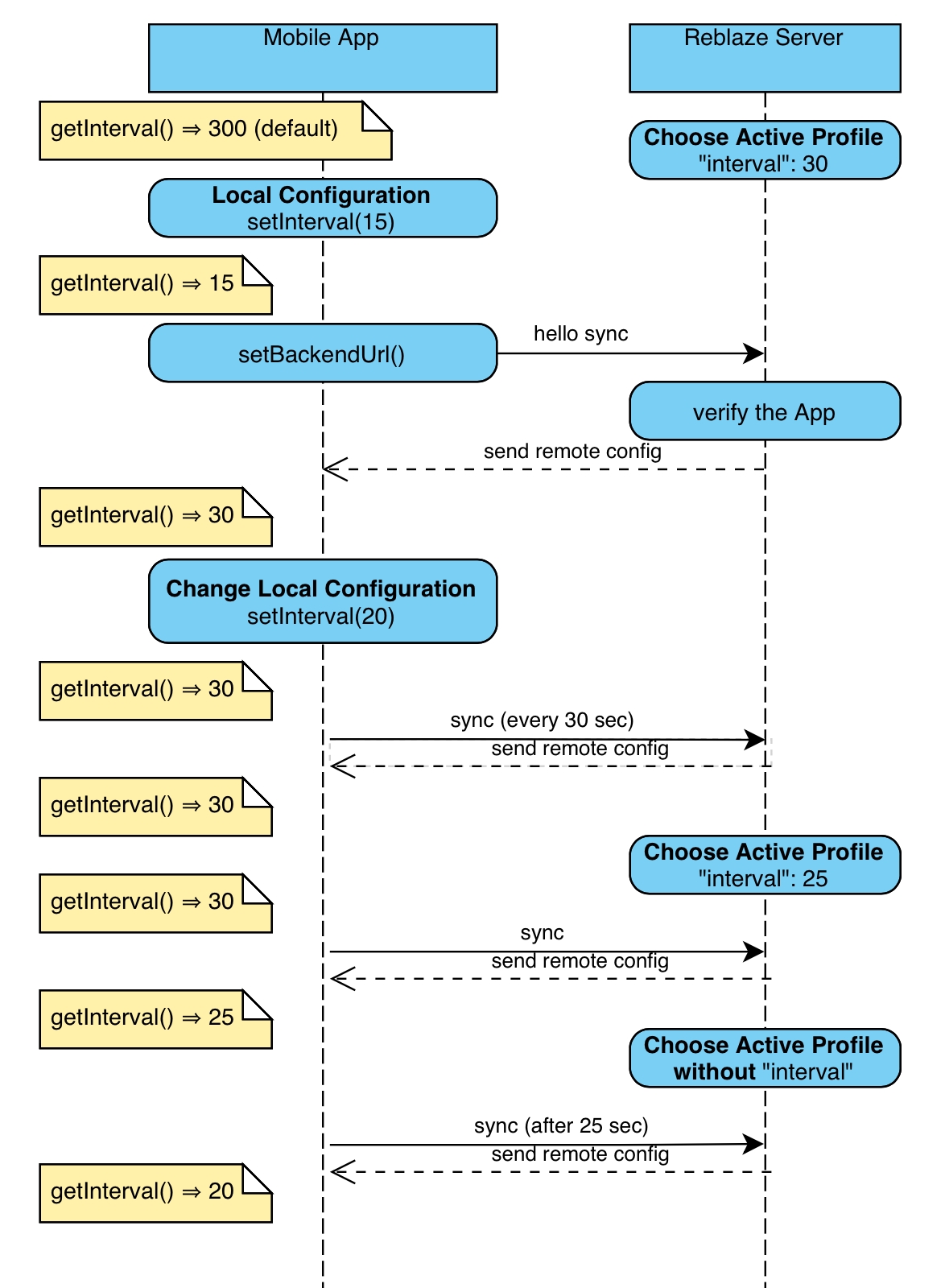
When a local property setting does not match the corresponding property setting in the active Profile, the Profile's setting is used. However, the local setting is not discarded. If the active Profile changes, and the new Profile no longer has a setting for that property, then the local setting will take effect.
The following diagram demonstrates this flow. It uses the interval parameter as an example, but the same logic works for all other parameters.
This demonstrates why you should not cache the values you get from the SDK for extended periods, because the parameters may be changed at any time due to the remote configuration.
Here are all the properties available to your app:
The list above is general information. The platform-specific documentation pages contain more information about setting properties.
Your backendUrl points to your application server, protected by the L11WAAP web proxy. You must configure this web proxy to recognize the signature of your app.
The L11WAAP console contains a page (Sites / Mobile Application Groups) that includes this section:
App Signatures is a list of SHA-256 digests of recognized certificates for your client application(s). The signature can be 7 or more characters long.
To find the signature for an iOS app, you can open the Apple Development Certificate in the Keychain app, and copy the SHA-256 fingerprint. Alternatively, you can this fingerprint from the ipa bundle.
For an Android app, you can get the SHA-256 fingerprint from the keystore or extract it from a signed APK with the apksigner tool (part of the Android SDK). See detailed instructions .
Additionally, you can find an app signature under a "sig7" argument in the /74d8-ffc3-0f63-4b3c-c5c9-5699-6d5b-3a1f endpoint using the next event log filter:
url~74d8-ffc3-0f63-4b3c-c5c9-5699-6d5b-3a1f
When uploading the fingerprint to the L11WAAP Console, make sure that it contains minimum 7 hexadecimal characters only, in lowercase, without spaces. Any number of signatures may be 'Active' at given time.
To avoid the issue of an app getting a new signature when uploaded to the App Store or Google Play, there is a protocol between the SDK and the backend that negotiates the signature remotely and updates the system with a new one, if such was generated.
The communication between the components takes place under the /74d8-ffc3-0f63-4b3c-c5c9-5699-6d5b-3a1f endpoint, and when a new signature is introduced, it will be provided as a value for the header named "sig7" (see screenshot below).
The /74d8-ffc3-0f63-4b3c-c5c9-5699-6d5b-3a1f request happens only once. To cause it to be sent again, uninstall and re-install the new version, or just clear app data and run it again.
This new signature shall then be added to the app signatures list under the Mobile SDK settings in the L11WAAP Console.
To find it easily in the Events Log, use this filter:
Profiles is a list of remote configurations, each of which contains settings that can override the parameters of the SDK on all mobile clients. The Default profile is always empty, and when it is active, the SDK parameters are fully determined by the app local configuration. Only one remote profile may be active at given time. For more on this, see the discussion above on remote configuration.
Grace period defines the allowable time between the timestamp of a request and the time that Link11 receives the request from the application. Requests with a longer delay will be rejected. (The grace period can be set to 24 hours to allow maximum use of the generated hash.)
Token Header Name determines the name of the header that contains session or user authentication token. With the new versions of Mobile SDK, it can be empty. This name should match the tokenHeaderName configuration parameter.
During testing, you may allow running the app on Simulator (iOS) or Android Emulator. These generate a special signature: "abadbabe". Make sure that this is disabled on Production. Note that you can also use both on Simulator and on a physical device.
Profile Format and Restrictions
As shown above, the backend can override the parameters of the SDK. The active remote profile applies to all mobile clients, both Android and iOS. The profile is stored as a JSON string. Correct JSON syntax is enforced, all strings must be "quoted". But in the current version, the there is no verification that this JSON follows the scheme expected by the SDK on the app (client) side. Unexpected parameters (including wrong capitalization) will be silently ignored. The valid parameters are listed in the table below:
The following parameters are supported, but you should have a very strong reason to change them remotely.
As long as a parameter is specified in the active profile, its value will override whatever is specified in the application code, but a different active profile may be chosen at any moment, or the same active profile may be edited.
When the changed profile does not specify some parameter anymore, the local value actualizes. Note that the remote configuration does not persist when the application shuts down.
The SDK provides a way to sign the Web requests that the app sends to the customer's microservice/API endpoint. The signatures are non-reproducible, non-guessable, and non-repeating. They provide a reliable, secure mechanism to verify that the packets are originating from the legitimate app that is operated by a user, and not from an emulator or other bot.
The SDK introduces an additional HTTP header (reblaze.reblazeHeader) that should be present in all HTTPS requests that go through Link11 WAAP. Depending on your network configuration, this may involve different URL domains and paths.
The signature is returned by the generateHash()method, and can be valid for up to 24 hours:
This method relies on the system clock, on the app identity, device identity and, optionally, on a user session token (see below). To verify the app identity, the app signature (the SHA-256 digest of the developer's certificate) will be registered with L11WAAP, as discussed above. The device identity does not compromise the user's privacy. Obtaining this id requires no permissions on either iOS or on Android. It cannot be used to recognize that different apps are running on the same device. Also, it will be reset if an end-user reinstalls the app (but it survives the normal app upgrade).
Protected User HTTP Session
If your API features an HTTP session that is specified by a header that holds some kind of user login token, or persistent user id, you can use the L11WAAP SDK to keep track of this session and provide protection from user id spoofing and token hijacking. The SDK secure hash will involve this token or id, so that the WAF rules can safely track the session, and make sure that the token is not manipulated by a man-in-the-middle or similar attack.
Perhaps you don't have such an id when the app starts up (before the user completes a signup or login process). Link11 will enforce login-time security rulesets while this value is not available. Make sure that you set this property as soon as you know it, for the better protection.
L11WAAP can use this token to enforce per-user security rulesets such as dynamic rate limits. This token can also help you to observe the activities of individual users within the traffic logs on the Link11 WAAP console.
This support is optional, and may be turned off at any time. Simply set reblaze.token to an empty string.
Auto-signing and WebView
WebViews embedded in your mobile app are powerful browsers on their own, and their communications are fully protected by the Link11 WAAP, which monitors end-user activity and filters bot traffic. However, this protection relies on Javascript, which should be disabled on WebView as the best practice recommended by OWASP. Without Javascript, the traffic must be protected by this Mobile SDK.
You can pass the rbzsdk header with a request that returns HTML that you load into a WebView, but this approach does not support the links and resources (including AJAX) that are parts of that HTML. To handle these use cases, the Mobile SDK introduces auto-signing. The details of this approach will be described separately on and , but the basic idea is the same: the SDK automatically signs all relevant requests as long as the application needs this. While debugging the application, all auto-signed requests will be reported to the listener (see ).
The SDK will periodically send summaries of user events to L11WAAP. These are generated automatically based on the user's interaction with the client application. The SDK accumulates the information and sends it to L11WAAP at an interval set in the SDK configuration. Each summary is signed by the SDK, to prevent rogue interceptors from editing the reports.
This information is used to build behavioral profiles, which are used to recognize legitimate usage patterns for the client application. These profiles provide an additional layer of security, based on private analytics and cumulative user-event data to which threat actors have no access. Thus, they provides an additional form of client authentication that is extremely difficult for threat actors to defeat.
The summary may include counts of the following user behavior events:
tap, click, gesture, keyDown, keyPress, keyUp, touchDown, touchMove, touchUp, timeInBackground, deviceOrientation
In the current version of the SDK, you can use ALL to choose all standard counters (this is the default), or NONE. The standard counters include also the count of signedRequests (this counter may help to check that the SDK is not being abused) and a timestamp (of the first event that is counted in the batch).
The summary also includes the current battery level, charging mode, application mode (foreground or background), and device mode (e.g. emulator).
L11WAAP includes these reports in its console with request /8d47-ffc3-0f63-4b3c-c5c9-5699-6d5b-3a1f. They can be observed by using this : url~8d47.
As mentioned above, Link11 uses the event counters to build behavioral profiles for users of the client application. After an initial learning period, L11WAAP will understand how legitimate users interact with the application. Subsequent users who do not conform to these behavioral patterns can be flagged as suspicious and/or blocked from access to the API endpoint.
Transmission Interval
The summary will be sent in a form of signed JSON to L11WAAP at the specified pace. The summary is not sent if there is nothing to report, e.g. if the application is in background, and does not communicate with the background. The interval cannot be shorter than MINIMUM_INTERVAL (12 sec). The default interval DEFAULT_INTERVAL is 5 minutes. Tune your interval according to the application usage patterns; for best performance, there should be a few reports sent during a user session. The event counts may be grouped in time slices, according to the timeslice parameter.
In addition to standard events, the SDK can also accumulate custom events, as reported by the client application. Each custom event is identified with a string chosen by the customer. Customers can define as many types of events as they wish, like this:
Sending more types of events has the following benefits:
L11WAAP can construct more sophisticated behavioral profiles, and thus can enforce more robust security policies. Example: a mobile API endpoint is receiving numerous requests for data from a specific IP address. Those requests for data are usually generated by a user interacting with the customer's application in a certain way. If the customer has coded the application so that all these interactive events are sent to Link11, then L11WAAP will have learned that these types of data requests should be accompanied by these specific custom events. A high number of data requests that are not accompanied by these event notifications would indicate that this is not a legitimate user; instead, it is probably an attacker using an emulator.
L11WAAP includes all the custom events in its traffic logs. Thus, customers can view fuller records of all the events being generated in each session.
The SDK does all its work in the background, and does not require application awareness of its state. It will not throw exceptions, display error logs, or crash your app.
However, we provide a way for the app to be aware of SDK status. For all SDK properties that are set by the app, or overridden by remote configuration, an SDK Event Listener can be used to keep track of networking errors that happen while the SDK is running:
Setting the SDK event listener does not depend on initialization. Actually, you may prefer to have monitoring ready when the SDK sends its first handshake HTTPS request to the backend. Therefore, we recommend to define the listener in the Application class. Note that on Android, the SDK does not retain the listener (it uses a weak reference), so it's your responsibility to protect it from being destroyed by the garbage collector.
For convenience of working with the Log.println(), the values of Kind enum match those of the Android framework Log class.
EventListener cannot be set in Flutter or ReactNative, due to performance limitations of these frameworks. You can add custom event listeners in the platform-dependent code of your app.
Each request in the events log is tagged based on multiple reasons. If multiple errors happen, multiple tags are attached. In some cases a request receives the mobile-app:signature-mismatch tag before it can recognize other tags.
The SDK will not work when the device is not connected to the internet and L11WAAP is not set up. But you can test how your app will work with the SDK without any server, even offline. To perform offline tests, use enableMock(). The SDK will not try to use the network, but will pretend to be sending events to Link11 and receiving acknowledgements from the server. In your test, you can define mock remote configuration and/or mock connection failure (with delay):
or
Once you enable mocking, you cannot turn it off. Therefore, this feature should never be used in production.
Follow these instructions for your specific platform:
userAgent
The header that will appear in Console logs for the sync messages that the SDK sends to the L11WAAP service. It depends on the platform. The remote configuration cannot override this value.
reportCounters
Which counters will be reported, either ALL (default) or NONE.
autoSign
Which requests will be signed automatically, either NONE (default) or ALL. Applies to iOS only.
hashVariant
Which variant of hash function the client will use in this session. In this version, this property is read-only, and fixed at "v2".
configurationName
Name of server-side configuration (it will be an empty string if the configuration is fully client-side). It is read-only.
backendUrl
URL for the customer's application server. The remote configuration cannot override this value.
tokenHeaderName
The name of the HTTP header that contains a unique token for this user or session. (Default: authorization).
token
The value for the header specified above (for example, the user's login token)
interval
Determines how often events are sent to the WAF, in seconds. Minimum: 12 sec. Default value: 5 min = 300 sec.
timeslice
Time interval for grouping the event data, milliseconds (rounded to 100ms). Default value: 1 sec = 1000 ms.
Zero timeslice means that no grouping is performed.
name
String, required. Don't specify it in the JSON, it will be taken from the left column. The SDK will see this as configurationName.
interval
Integer, in seconds. If it is below the minimum of 12 sec, the app will use 12 sec.
timeslice
Integer, in milliseconds. The app will round this value to hundreds of milliseconds.
Zero timeslice means that no grouping is performed.
reportCounters
String, either "ALL" or "NONE".
autoSign
String, either "NONE" or "ALL".
tokenHeaderName
String. It should be synchronized with the UID Header Name setting of the Web Proxy, and also the app must comply with this change.
hashVariant
String, should be "v2". Otherwise, the SDK will not be able to communicate with the backend anymore, and all future app requests will not be recognized as Human.
1
A request sent a signature to a Server Group that doesn't have a Mobile Application Group configured.
mobile-app:no-mobile-application-group
2
A request sent a signature to the Server Group that is different from any in its Mobile Application Group.
mobile-app:signature-mismatch
3
The request's time stamp, compared to the time L11WAAP received the request, exceeds the Mobile Application Group's grace period.
mobile-app:timeout-exceeded
4
A Token was sent in a request header, but the Mobile Application Group's Token Header Name is not defined, or is different.
mobile-app:token-mismatch
5
A request came from an emulator.
mobile-app:emulator

reblaze.reportCounters = ReblazeSDK_ReportCountersALL; // Objective-C
reblaze.setTokenHeaderName("session-id"); // Java
reblaze.setToken('Bearer cn389ncoiwuencr'); // Flutter
let interval = reblaze.interval // Swift
val configName = reblaze.configurationName // Kotlinurl~74d8-ffc3-0f63-4b3c-c5c9-5699-6d5b-3a1fhttpsURLConnection.setRequestProperty(reblaze.reblazeHeader, reblaze.generateHash())httpsURLConnection.setRequestProperty(reblaze.reblazeHeader, reblaze.generateHash());urlRequest.setValue(reblaze.generateHash() forHTTPHeaderField: reblaze.reblazeHeader)[nsMutableURLRequest setValue:[reblaze generateHash] forHTTPHeaderField:reblaze.reblazeHeader];final response = await client.get(uri),
headers: {
HttpHeaders.authorizationHeader: token, // same as reblaze.setToken()
reblaze.reblazeHeader: await reblaze.generateHash(),
}
);reblaze.sendEvent("buttonPressed")reblaze.setEventListener { kind, message ->
val text: String
if (kind == Kind.ERROR) {
Toast.makeText(context, message, Toast.LENGTH_LONG).show()
}
Log.println(kind.value, "reblaze", message)
}reblaze.setEventListener() { kind, message in
guard kind.rawValue >= reblaze.Kind.INFO.rawValue else { return }
print("reblaze:", kind, message)
} [reblaze setEventListener:
^(ReblazeSDK_Kind kind, NSString * _Nonnull message) {
NSLog(@"reblaze: %s %@", ReblazeSDK_KindName[kind], message);
}];reblaze.setEventListener(new SdkEventListener() {
@Override
public void onSdkEvent(Kind kind, String message) {
if (kind.getValue() >= Log.WARN)
Log.println(kind.getValue(), "reblaze:", message);
}
});reblaze.setMockResponse(200, "{'name':'mockConfig', 'interval':30}")[reblaze setMockResponse:200 remoteConfig:@"{'name':'mockConfig', 'interval':30}"]reblaze.setMockResponse(503, "", 600)